I started reading more often on my Kindle. However, after finishing a book I decided I wanted to share some of the important snippets from the book to my blog. Fortunately, Kindle stores the highlighted text into a file called My Clippings. Said file contains all the notes from all the books arranged by date of creation. This leads, of course, to having a document that lacks organization and one where you cannot just copy and paste ALL the text from one specific book.
Hence, I thought of a tool that could allow me to get the clips of the books I want to extract and copy and paste into the blog seamlessly. The process I did was as follows:
- What do I want to achieve?
- What do I need to achieve so?
- Can I do it with the current tools?
- How can I cover different scenarios?
- How can I make it more organized?
- What details am I missing?
- Reiterate
By doing so, I was able to come up with a functional code that managed to parse the original file, create a dictionary of titles and traverse line by line until it was able to store tuples with date and text as the value of the key title.
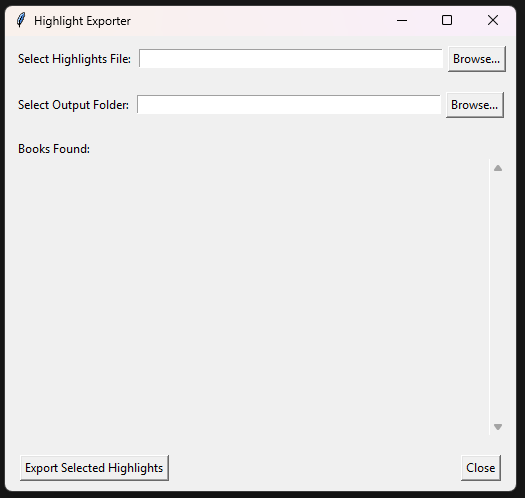
Here I share the final result of the code:
import osimport reimport tkinter as tkfrom tkinter import filedialog, messagebox# Regex pattern for highlight/note linesline_pattern = re.compile(r'^- Your (Highlight|Note).*Added on (.+)$')invalid_filename_chars = r'<>:"/\|?*'def parse_file(filepath): """ Parse the input file to extract highlights by book. Returns a dictionary { book_title: [(date, highlight_text), ...], ... }. """ with open(filepath, 'r', encoding='utf-8') as f: lines = f.readlines()
book_highlights = {} current_book = None current_date = None collecting_highlight = False highlight_text_buffer = []
for line in lines: line = line.strip('\n')
if line == '==========': if collecting_highlight and highlight_text_buffer: highlight_text = '\n'.join(highlight_text_buffer).strip() # Skip one-word highlights if len(highlight_text.split()) > 2: if current_book not in book_highlights: book_highlights[current_book] = [] book_highlights[current_book].append((current_date, highlight_text)) highlight_text_buffer = [] collecting_highlight = False continue
match = line_pattern.match(line) if match: highlight_or_note = match.group(1) date_str = match.group(2).strip() if highlight_or_note == 'Highlight': current_date = date_str collecting_highlight = True highlight_text_buffer = [] else: # It's a note, ignore collecting_highlight = False highlight_text_buffer = [] continue
if line and not line.startswith('-') and not collecting_highlight: current_book = line.strip('\uFEFF').strip() continue
if collecting_highlight: highlight_text_buffer.append(line.strip())
return book_highlightsdef sanitize_filename(name): for ch in invalid_filename_chars: name = name.replace(ch, '') return name.strip()
def browse_file(): filepath = filedialog.askopenfilename( title="Select Highlights File", filetypes=[("Text Files", "*.txt"), ("All files", "*.*")] ) if filepath: file_path_var.set(filepath) load_books()
def choose_output_folder(): directory = filedialog.askdirectory(title="Select Output Folder") if directory: output_path_var.set(directory)
def load_books(): # Clear existing checkbuttons for widget in checks_frame.winfo_children(): widget.destroy()
filepath = file_path_var.get() if not filepath: return
global book_highlights, book_vars book_highlights = parse_file(filepath) book_vars = {}
if not book_highlights: tk.Label(checks_frame, text="No highlights found.").pack(anchor="w", padx=5, pady=5) return
# Create checkbuttons for each book for book in book_highlights.keys(): var = tk.BooleanVar(value=False) book_vars[book] = var cb = tk.Checkbutton(checks_frame, text=book, variable=var, anchor="w", justify="left", wraplength=500) cb.pack(fill='x', anchor='w', padx=5, pady=2)
def export_selected(): if not file_path_var.get(): messagebox.showwarning("No File", "Please choose a highlights file first.") return
export_dir = output_path_var.get().strip() if not export_dir: messagebox.showwarning("No Output Folder", "Please select an output folder.") return
selected_books = [book for book, var in book_vars.items() if var.get()]
if not selected_books: messagebox.showwarning("No Selection", "Please select at least one book.") return
for book_title in selected_books: highlights = book_highlights[book_title]
sanitized_title = sanitize_filename(book_title) out_path = os.path.join(export_dir, sanitized_title + '.txt')
with open(out_path, 'w', encoding='utf-8') as out: for date_str, text in highlights: out.write(f"Date: {date_str}\n{text}\n\n---\n\n")
messagebox.showinfo("Export Complete", "Selected books have been exported.")
def close_app(): root.destroy()root = tk.Tk()root.title("Highlight Exporter")
file_path_var = tk.StringVar()output_path_var = tk.StringVar()
# Top frame for file selectiontop_frame = tk.Frame(root)top_frame.pack(padx=10, pady=10, fill=tk.X)
tk.Label(top_frame, text="Select Highlights File:").pack(side=tk.LEFT)tk.Entry(top_frame, textvariable=file_path_var, width=50).pack(side=tk.LEFT, padx=5)tk.Button(top_frame, text="Browse...", command=browse_file).pack(side=tk.LEFT)
# Output frame for output folder selectionoutput_frame = tk.Frame(root)output_frame.pack(padx=10, pady=10, fill=tk.X)
tk.Label(output_frame, text="Select Output Folder:").pack(side=tk.LEFT)tk.Entry(output_frame, textvariable=output_path_var, width=50).pack(side=tk.LEFT, padx=5)tk.Button(output_frame, text="Browse...", command=choose_output_folder).pack(side=tk.LEFT)
# Middle frame with "Books Found:" label and scrollable area for checkboxesmiddle_frame = tk.Frame(root)middle_frame.pack(padx=10, pady=10, fill=tk.BOTH, expand=True)
tk.Label(middle_frame, text="Books Found:").pack(anchor=tk.W)
# Create a frame with a scrollbar for the checkbuttonsscroll_frame = tk.Frame(middle_frame)scroll_frame.pack(fill=tk.BOTH, expand=True)
canvas = tk.Canvas(scroll_frame)canvas.pack(side=tk.LEFT, fill=tk.BOTH, expand=True)
scrollbar = tk.Scrollbar(scroll_frame, orient="vertical", command=canvas.yview)scrollbar.pack(side=tk.RIGHT, fill='y')
checks_frame = tk.Frame(canvas)canvas.create_window((0,0), window=checks_frame, anchor='nw')def on_canvas_configure(event): canvas.configure(scrollregion=canvas.bbox("all"))
canvas.bind('<Configure>', on_canvas_configure)canvas.configure(yscrollcommand=scrollbar.set)
# Bottom frame for Export and Close buttonsbottom_frame = tk.Frame(root)bottom_frame.pack(padx=10, pady=10, fill=tk.X)
tk.Button(bottom_frame, text="Export Selected Highlights", command=export_selected).pack(side=tk.LEFT, padx=5)tk.Button(bottom_frame, text="Close", command=close_app).pack(side=tk.RIGHT, padx=5)
root.mainloop()Topics to Understand
In order to be able to come up with this solution, it is paramount to understand the following programming structures:
-
Basic Python Syntax and Data Structures
To reach this solution, you need to understand the fundamentals of Python, how to declare variables, write loops and conditionals, and manage data in lists and dictionaries.
Python basicsbook_highlights = {} # dictionary to store highlights by bookhighlight_text_buffer = [] # list to accumulate lines of a highlight# Simple conditional and loopif collecting_highlight:for line in highlight_text_buffer:# process each linepass -
File Input/Output (I/O)
Being able to read from and write to files is crucial for loading highlight data and exporting results.
File I/O in Python# Reading from the file and closing once finishedwith open(filepath, 'r', encoding='utf-8') as f:lines = f.readlines()# Writing into a filewith open(out_path, 'w', encoding='utf-8') as out:out.write("Some text\n") -
String Manipulation and Methods
Processing lines of text, trimming whitespace, splitting into words, and replacing characters is essential for cleaning and filtering highlights.
String Methodsline = line.strip('\n')highlight_text = '\n'.join(highlight_text_buffer).strip()if len(highlight_text.split()) > 2:highlight_text = highlight_text.replace('\uFEFF', '') -
Regular Expressions (re)
Identifying the format of highlight lines requires pattern matching, which can be done effectively with regular expressions.
re — Regular expression operationsline_pattern = re.compile(r'^- Your (Highlight|Note).*Added on (.+)$')match = line_pattern.match(line)if match:highlight_or_note = match.group(1)date_str = match.group(2).strip() -
Functions
Structuring code into functions improves organization and makes the code more maintainable and reusable.
Defining Functionsdef parse_file(filepath):# code that parses the file and returns a dictionaryreturn book_highlights -
Modules and Imports
Leveraging Python’s standard library and organizing code across modules simplifies coding tasks and adds clarity.
The import systemimport osimport reimport tkinter as tkfrom tkinter import filedialog, messagebox -
tkinter GUI Development
Building a graphical user interface allows users to interact with the application in a more intuitive way, selecting files, folders, and options.
tkinter — Python Interface to Tcl/Tkroot = tk.Tk()root.title("Highlight Exporter")top_frame = tk.Frame(root)top_frame.pack(padx=10, pady=10, fill=tk.X)tk.Label(top_frame, text="Select Highlights File:").pack(side=tk.LEFT)tk.Entry(top_frame, textvariable=file_path_var, width=50).pack(side=tk.LEFT, padx=5)tk.Button(top_frame, text="Browse...", command=browse_file).pack(side=tk.LEFT) -
Error and Warning Dialogs (messagebox)
Providing user feedback through dialogs ensures that the user knows when prerequisites are not met, such as missing file selections.
tkinter.messageboxif not file_path_var.get():messagebox.showwarning("No File", "Please choose a highlights file first.") -
Path and Filename Handling (os.path)
Proper handling of file paths and sanitizing filenames ensures that output can be saved reliably on different operating systems.
os.path — Common pathname manipulationsout_path = os.path.join(export_dir, sanitized_title + '.txt') -
Packaging With PyInstaller (Optional)
Finally, turning the script into a standalone executable lets you distribute the tool without requiring users to have Python installed.
PyInstaller DocumentationTerminal window pyinstaller --onefile --noconsole highlight_exporter.py